Xboard payment plugin: how to accept card and wallet payments in Xboard
How to set up the Xboard payment plugin: install it, add the API key and signing secret, set currency and rate, test in the sandbox, and fix common issues.
On this page
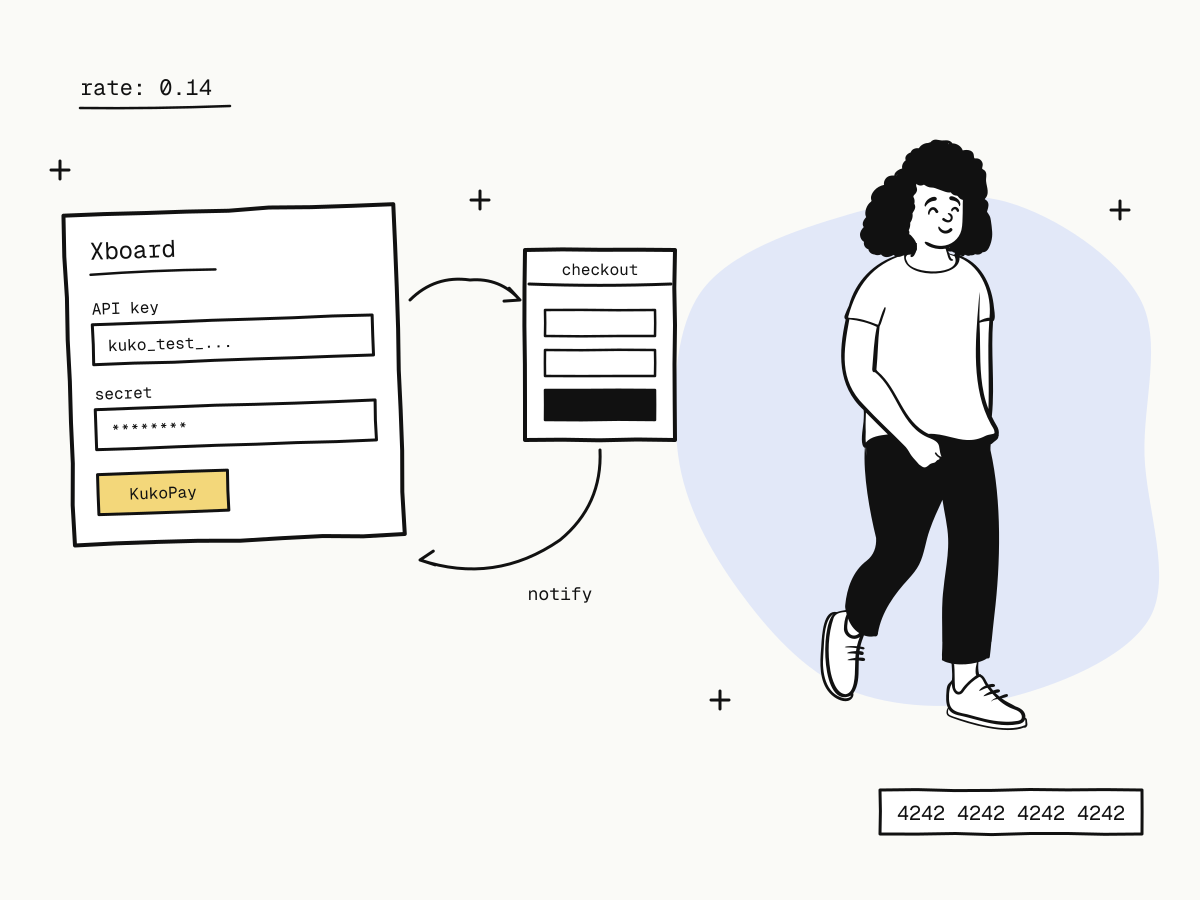
The Xboard payment plugin connects an Xboard panel to KukoPay, so users can pay for a plan by card or wallet on a hosted checkout and have their subscription opened automatically. You upload the plugin, enter an API key and a signing secret, and add it as a payment method — no code. When a user pays, KukoPay sends a signed notification back to Xboard, which marks the order paid.
This guide covers setting up the Xboard payment plugin step by step, how amounts and currencies work, how to test it in the sandbox, what the plugin does behind the scenes, and how to fix the problems people run into most.
Plugin or Xboard's built-in EPay?
Xboard can take KukoPay payments two ways:
| KukoPay plugin | Built-in EPay | |
|---|---|---|
| Install | Upload a plugin | Nothing to install |
| Protocol | KukoPay's own API, HMAC-signed webhooks | The epay protocol, MD5 signatures |
| Credentials | API key + webhook signing secret | Merchant ID (pid) + key |
Both work. The plugin uses the native API and stronger signatures; EPay needs no install — see the epay integration guide for that route.
Before you start
- An Xboard version with plugin management (a Plugin management menu in the admin).
- Your Xboard site reachable over public HTTPS — the plugin only passes Xboard's notification address to KukoPay when it is HTTPS.
- A KukoPay account. The sandbox needs no review; live payments need business verification.
How to set up the Xboard payment plugin
Upload and enable the plugin
Download the plugin from the Xboard plugin page — each version has a SHA-256 checksum you can verify — then upload the zip under Plugin management in Xboard and install and enable KukoPay.
Get two values from the KukoPay dashboard
Switch to the app you will use for Xboard (a separate app keeps its orders, keys and notifications apart from your other business — see accepting payments on multiple websites). On Developers → API keys, issue an API key and the app's callback signing secret. Start with sandbox values: a kuko_test_ key and the sandbox secret.
Add the payment method in Xboard
Under Xboard's payment settings, add a method with the KukoPay interface and fill in the API key, the signing secret, the currency (USD, HKD or CNY), the rate and the checkout language (zh or en). Save, and note the method's notification address.
Send a test webhook
In Developers → Sandbox testing, select the app and send a test webhook to that notification address. A 2xx response means the address and the signing secret are both right; the plugin acknowledges it without opening any order.
Pay one order in the sandbox
Place an order on the Xboard front end and pay at the checkout with the test card 4242 4242 4242 4242, any future expiry and any 3-digit CVC. The Xboard order should become paid and the subscription open.
Switch to live
After approval, replace the API key and signing secret with the same app's live values. Both must come from the same environment.
Currency and exchange rate
Xboard keeps amounts in cents. The plugin multiplies the amount by your rate and rounds it to whole minor units: an Xboard price of ¥30.00 with currency USD and rate 0.14 is charged as 3000 × 0.14 = 420, i.e. $4.20. Use rate 1 when Xboard's prices are already in the collection currency.
The rate is fixed — the plugin does not update it. Adjust it yourself when the exchange rate moves, and note that live orders can only use currencies enabled on your account. See how to accept USD payments and how cross-border payment fees are calculated.
What the plugin does behind the scenes
- Creates the order with Xboard's order number as
out_trade_noand anIdempotency-Key, so a user clicking pay twice does not create two orders. - Closes the checkout before Xboard cancels. Xboard cancels unpaid orders after 2 hours; the plugin sets the checkout to close 1 hour 50 minutes after the Xboard order was created, so nobody can pay for an order that is about to be cancelled. See how to cancel unpaid orders.
- Verifies every notification — the signature, a timestamp no more than 5 minutes old, and both secrets during a rotation — and opens the order only on
payment.succeededfor apaidorder. - Logs the
request_idof a failed order creation in Xboard's log, so you can find the full request under Developers → API logs.
Xboard payment plugin troubleshooting
Paid, but the Xboard order did not open
Open the delivery history under Developers → Webhooks:
- No deliveries — the site is not HTTPS, so no notification address was sent. Add a webhook endpoint for the app with the notification address as its URL, and put that endpoint's signing secret in the plugin.
- 4xx / 5xx — usually the wrong signing secret, or one from the other environment. Check with a test webhook.
- Timeouts — a firewall, CDN or WAF in front of Xboard is blocking the POST.
Fix it, then redeliver from the history; the user does not need to pay again.
"This merchant order number already has an order"
The second payment attempt for the same Xboard order had a different amount or currency — usually because the rate or currency was changed in between. Have the user cancel the order and place a new one.
The checkout says the link has expired
The checkout closes 1 hour 50 minutes after the Xboard order was created, and the plugin stops starting payments in the last 5 minutes. Cancel and reorder.
Live orders are refused
The account is not approved yet, the currency is not enabled for live, or the site is not HTTPS and no live notification address is configured. The error in Xboard's log, or the request_id in the API logs, says which.
Summary
- The Xboard payment plugin adds KukoPay as a payment method: upload it, enter an API key and signing secret, set currency, rate and language;
- the rate converts Xboard's price into the collection currency and is not updated automatically;
- test with a test webhook and a
4242sandbox payment, then switch both credentials to the same app's live values; - the plugin is idempotent, closes the checkout 10 minutes before Xboard cancels the order, and verifies every notification;
- most problems are a missing HTTPS notification address, a mismatched secret, or a changed rate.
Try it in the sandbox
Create a merchant account and request a test key. The sandbox needs no business verification.